Plamia
Plamia turns a script into an animated video with images, voiceover, and captions, then opens the result in a full video editor. HeyGen offers AI presenters and video generation with editing in AI Studio. Both let you revise the result. The difference is how you build the scenes and control their timing.
In brief
- Plamia keeps generated visuals, captions, voiceover, and sound effects on separate timeline tracks.
- HeyGen supports AI presenter videos and manual scene editing, including drafts created by Video Agent.
- Choose based on what needs to appear on screen and which parts you want to adjust yourself.
Plamia and HeyGen at a glance
Scroll horizontally to compare every column.
| Workflow | Plamia | HeyGen |
|---|---|---|
| Starting a video | Paste a script or use an existing voiceover | Start from a script, template, presentation, or Video Agent |
| Visuals | Generated or uploaded images, animated scenes, and reusable characters | AI presenters, uploaded media, and generated visuals |
| Editing after generation | Full editor with a multi-track timeline and canvas | AI Studio for manual changes; chat revisions in Video Agent |
| Timing | Move and trim individual visual, caption, and audio clips | Scene controls and element timing linked to the script |
| Voiceover | Generate narration, upload a recording, or reuse saved audio | Choose a voice, upload audio, or record narration |
| On-screen character | A reusable illustrated or styled character | A speaking AI presenter, which is optional |
Sources: Plamia editor and generation guide, HeyGen AI Studio, Editing scenes in HeyGen, HeyGen Video Agent and manual editing
Can I edit the video after it is generated?
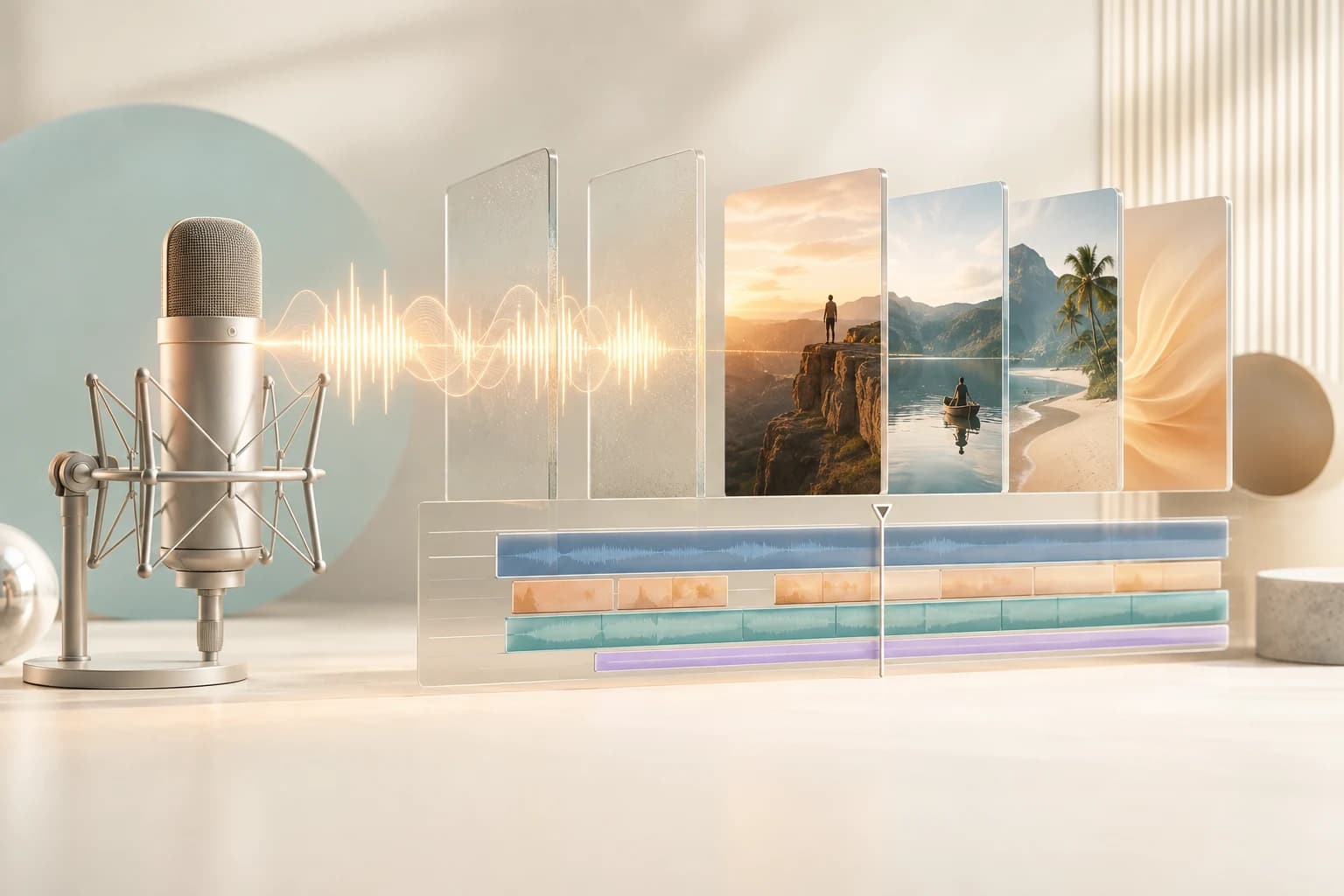
Yes, in both tools. In Plamia, the generated video remains a project with separate tracks for visuals, captions, voiceover, sound effects, and backgrounds. You can move a caption earlier, shorten a scene, resize an image, or adjust its animation directly. You do not need to describe these small changes in another prompt.
HeyGen also provides manual editing. Its AI Studio guide describes scene editing and timing markers that control when an element appears during the script. A Video Agent draft can be opened through Edit a Copy in AI Studio to change media, layout, timing, and captions. Changes to generated speech or an avatar performance can require rendering again.
Sources: Plamia editor and generation guide, Editing scenes in HeyGen, HeyGen Video Agent and manual editing
For Plamia, the practical benefit is that the generated scene is already arranged on an editable timeline. If an image should enter when a particular word is spoken, you can move its clip and preview that moment alongside the narration.
Do I need an AI presenter or an animated video?
Choose Plamia when you want narration accompanied by images, text, and motion. A history short, a visual explanation, or an illustrated story can use a different composition in each scene. Templates set the visual style, and the editor lets you adjust the result.
Consider HeyGen when a person speaking to the camera is central to the video. Its presenter tools are a different capability from a saved Plamia character. A Plamia character helps maintain a visual identity across scenes; it is not a lip-synced digital presenter. HeyGen also allows scenes without an avatar, so a presenter is not a requirement.
Sources: Plamia editor and generation guide, HeyGen AI Studio, Editing scenes in HeyGen
Can I use my own images and voiceover?
In Plamia, you can upload images, restyle them, and use your own recorded voiceover. This is useful if you already have the narration or want to show specific people, products, or places. The resulting images and audio remain editable in the project.
HeyGen supports uploaded media and recorded or uploaded narration in AI Studio. For a Video Agent project, open the copy in AI Studio when you want to make detailed manual changes rather than continue revising through chat.
Sources: Plamia editor and generation guide, Editing scenes in HeyGen, HeyGen Video Agent and manual editing
What should I check before choosing a plan?
Try one script that matches the videos you actually publish. After generation, replace an image, adjust a caption, and change the timing of a scene. Check whether you can make those edits comfortably and which changes require new generation.
Plamia uses credits for generation. Compare the current allowances for the features you need, including narration and generated visuals. For HeyGen, also check the plan access and usage rules for your chosen avatar and Video Agent tools.
Sources: Plamia pricing, HeyGen pricing
Is Plamia a HeyGen alternative?
Yes, for narrated videos built from images, captions, and animation. Plamia is useful when you want a generated first draft and direct control over the finished sequence in the same editor. It is not a replacement for a realistic speaking avatar if that is the main reason you use HeyGen.
Continue with the production workflow
Read the complete script-to-video guide or review the current editor controls and supported formats in Plamia Help.
Published by Plamia. Official product documentation reviewed on . This is a workflow comparison, not an independent performance benchmark. Features and plan limits may change. HeyGen is an independent product; its name and logo identify the comparison and do not imply affiliation or endorsement.