Plamia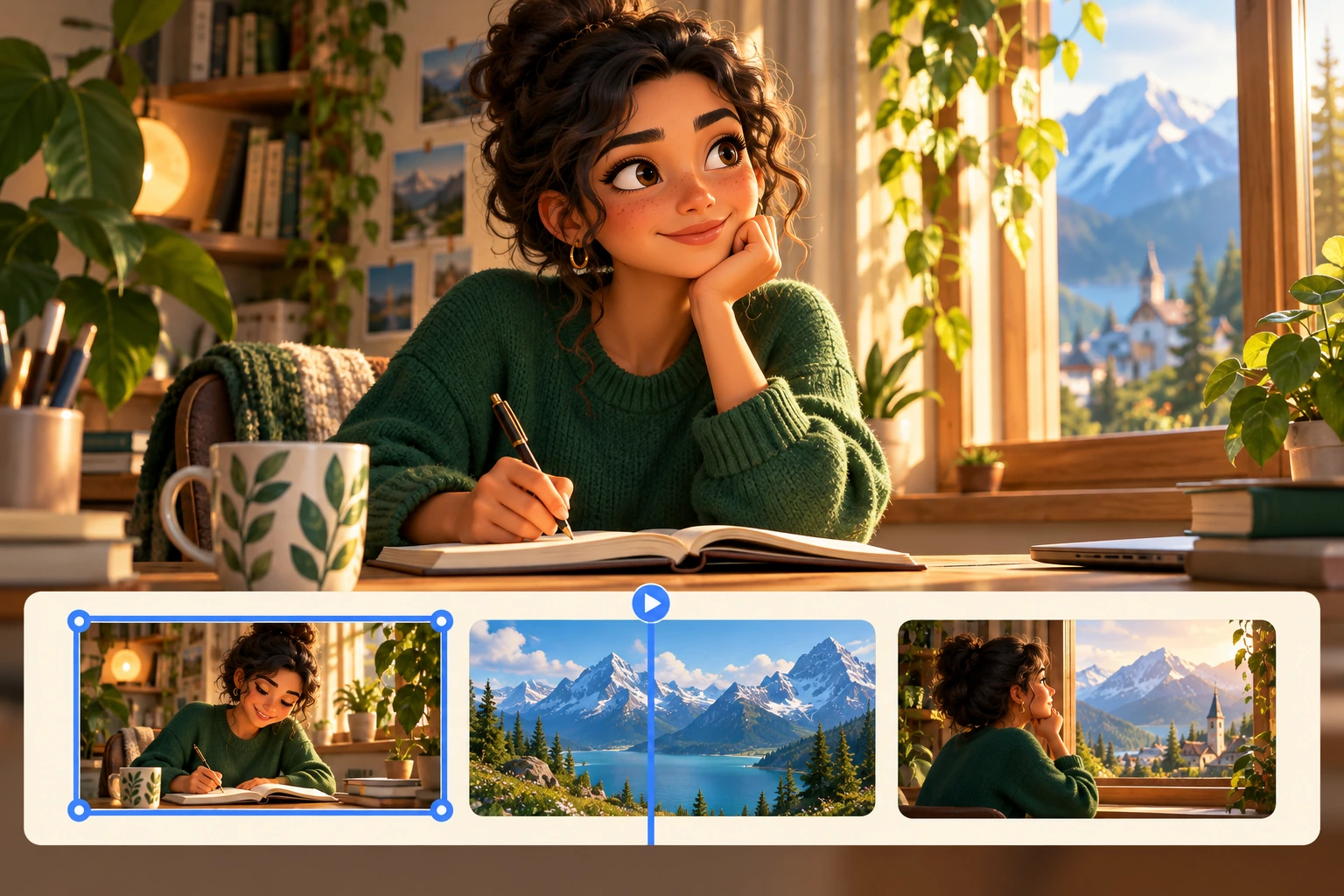
Treat a generated video as a first draft. Plamia keeps the timeline editable, so you can improve a specific scene, fix a caption, or change the pacing without accepting the first result as your final export.
Watch the first draft before touching the timeline
Play the whole video once and note the three most important changes. Look for problems that affect understanding: a scene that does not match the narration, a rushed sentence, or captions covering the subject. Fix these before spending time on small visual preferences.
Then identify which layer is responsible. The editor separates visual clips, captions, voiceover, sound effects, and background audio. A timing problem in a caption is not necessarily a problem with the image underneath it. Working on the right layer keeps revisions focused.
Adjust scenes around the narration
Select the clip you want to change and use the timeline controls to move, trim, duplicate, or remove it. Make one meaningful adjustment at a time, then replay the transition into and out of that scene. A clip can look correct in isolation but still interrupt the story.
For a reveal, give the audience a moment to see the detail before moving on. For a repetitive section, shorten the visual sequence without cutting away information the voiceover still needs. Check that every edit leaves the visuals aligned with the spoken idea.
Replace the image, not the whole project
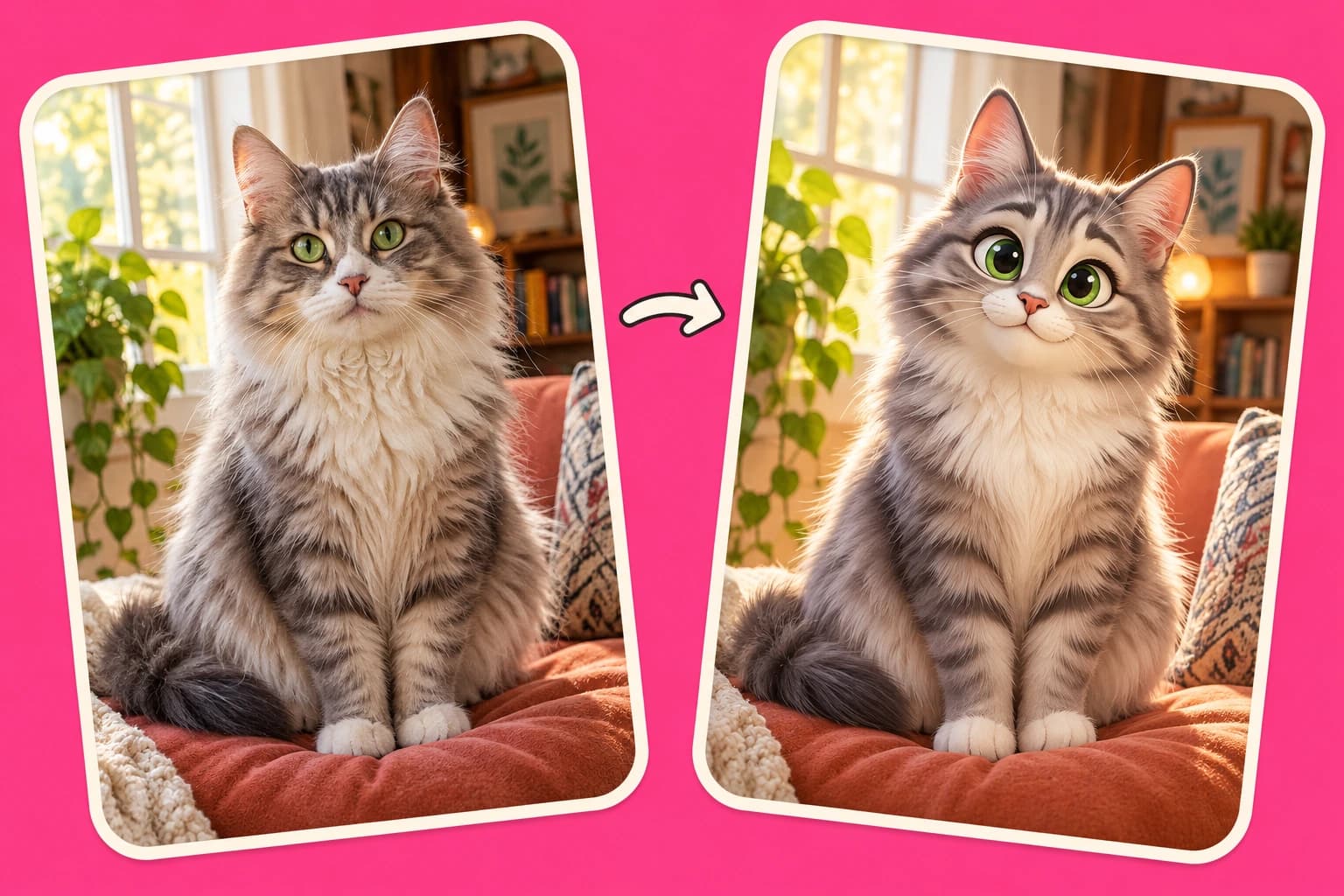
If an image is the problem, replace it with suitable media or regenerate that image. You do not have to rebuild the entire video to correct one poor scene. Adjust its position, size, or rotation when a better composition is all that is needed.
Check other appearances of the same media after replacing it. In Plamia, clips that point to the same image can update together. A change that improves one scene may therefore affect another. Generating new images can use credits; ordinary timeline editing does not.
Make captions and audio easy to follow
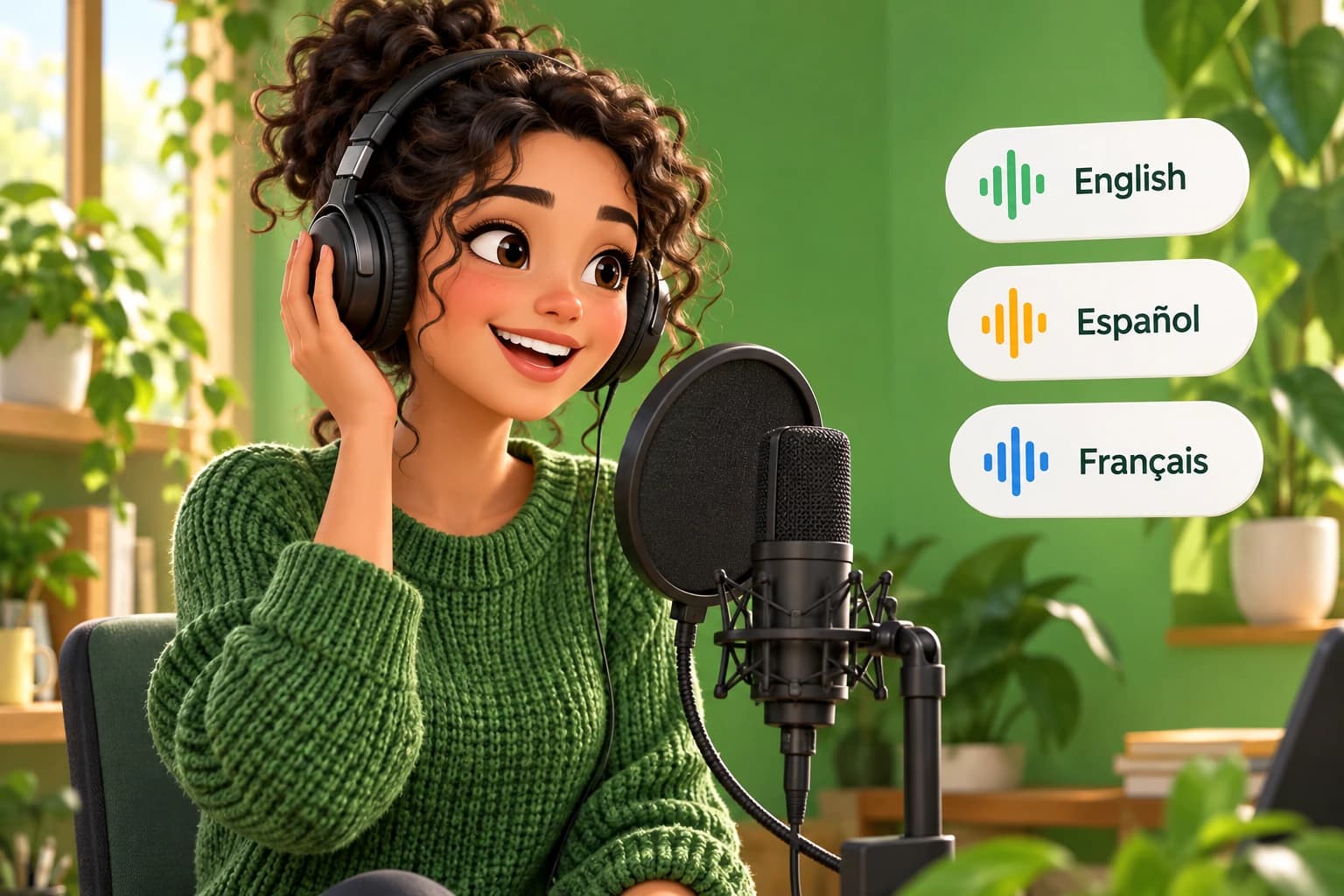
Review captions against the actual narration rather than only reading the original script. Names, punctuation, and timing deserve a separate pass.
- Correct the caption words, then check when they appear and disappear.
- Keep text clear of important faces, objects, and the edges of the frame.
- Listen for music or effects competing with the voiceover and adjust the relevant audio track.
- Replay the opening and ending. Avoid a cut-off first word or an ending that stops before the thought finishes.
Export and check the finished file
Check the video in its intended format, such as 9:16 for a vertical short. Review the full sequence at a phone-friendly size, including captions and scene edges. A layout that looks spacious on a desktop can feel crowded on a small screen.
Export the finished video as an MP4 and keep the browser tab open and in the foreground while the export runs. Watch the downloaded file from beginning to end before posting. Keep the editable project so a later spelling correction or pacing adjustment does not require starting over.