Plamia
An illustrated video does not need constant movement to hold attention. Well-timed motion can reveal a detail, guide the eye, or make a transition feel intentional. The starting point is a sequence of clear story beats.
Understand the kind of animation you are making
Plamia builds an editable video from images, media, narration, captions, and effects. Motion applied to those elements can give a still illustration energy. This is different from generating continuous footage in which a character physically performs every action in your script.
For example, a running character in an illustration can suggest action while the composition moves through the scene. Do not assume that an illustrated running pose means the app will generate a complete walking or running cycle. Plan around visual storytelling, not an unverified animation capability.
Give each scene one job
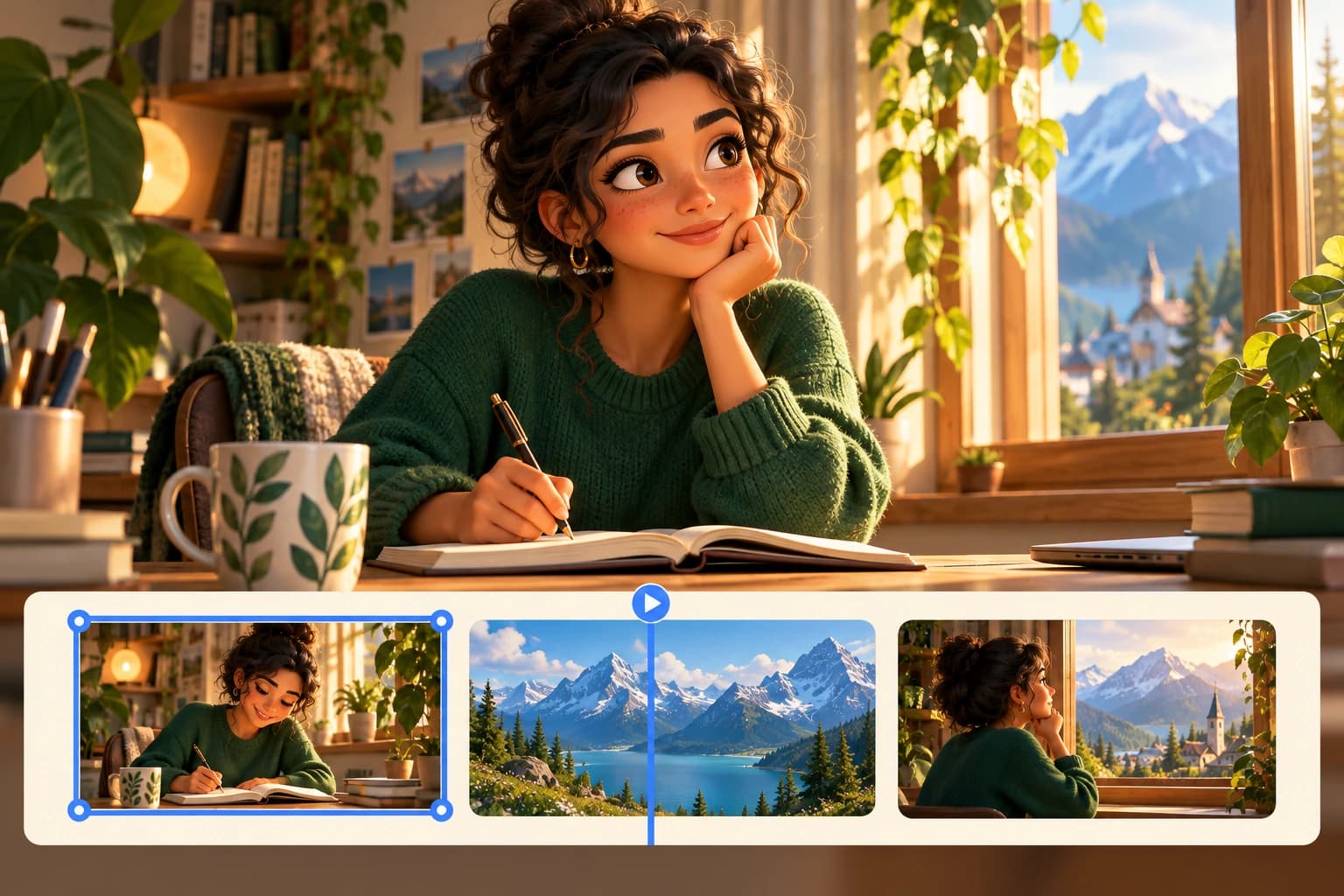
Break the script into moments the viewer can understand at a glance. An adventure might begin with a map, move to a difficult trail, and end at a lookout. Each image answers a different question: where are we going, what stands in the way, and what changed?
Use the narration to connect these moments. Avoid asking one crowded image to explain a location, introduce several characters, and reveal the ending at the same time. A simpler composition gives both motion and captions room to work.
Generate the sequence, then inspect its movement
Enter the script, select a visual style, and generate your first version. Open the editor and play the whole sequence before changing individual effects. Notice where the pace feels abrupt or where motion pulls attention away from the subject.
Work on the weakest moment first. A dramatic entrance may suit a reveal, while a longer hold may be better for an emotional sentence. Use the available motion presets and timing controls to support the beat rather than adding a different effect to every clip.
- Keep the main subject inside the visible frame throughout the movement.
- Give important details enough screen time to register before the next scene.
- Avoid stacking busy motion beneath long captions.
- Repeat a small number of compatible effects so the sequence feels deliberate.
Use transitions and sound to connect scenes
A transition should help explain a change in place, time, or emphasis. If two adjacent scenes already flow naturally, a quieter change can be enough. Save a more noticeable transition for a real turning point rather than treating it as decoration.
Listen to the voiceover while adjusting scene boundaries. Let the image arrive when the narration introduces it, and make sure effects do not obscure important words. A clear audio track often makes a modest visual movement feel more convincing than a complicated effect would.
Judge the result at phone size
Preview the intended aspect ratio and watch without pausing. Check whether the subject is clear, captions stay readable, and every movement has a reason. If you need to stop playback to understand a scene, simplify its composition or give it more time.
After exporting, watch the actual MP4 as well. The goal is not the maximum number of animated elements. It is a story whose visuals, narration, and timing feel like they belong together.