Plamia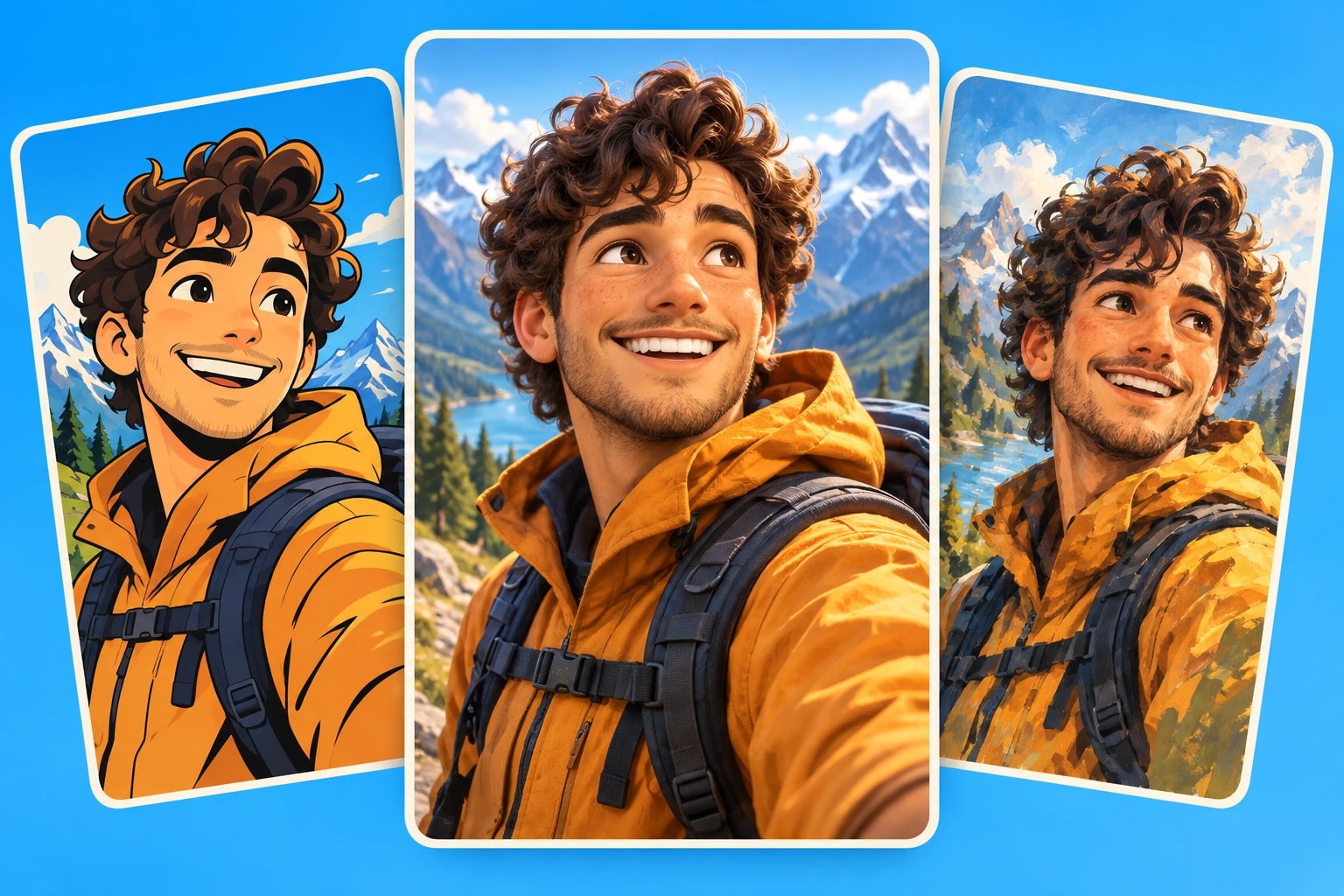
A visual style shapes how a story feels before the first sentence finishes. Choose it around the subject, the mood, and the details your audience needs to notice, not simply the most impressive preview.
Start with the feeling of your story
Write down the reaction you want: curiosity, reassurance, excitement, or suspense. A playful animal story can suit rounded 3D characters. A dramatic turning point may benefit from bold outlines and strong contrast. A quiet personal story can work better with a softer illustrated finish.
Use a concrete scene as your test. Instead of judging an isolated portrait, imagine your character finding a letter in an empty train station. Consider whether the style makes the character, the letter, and the setting easy to read on a phone.
Compare the styles available in Plamia
The style names describe different image treatments. They do not change the meaning of your script or turn an illustration into filmed footage.
- Cartoon uses confident outlines, saturated colors, and comic-style shading. Try it for punchy stories with clear emotions.
- Cartoon realistic combines more natural proportions with a polished, painterly finish. Use it when faces and atmosphere both matter.
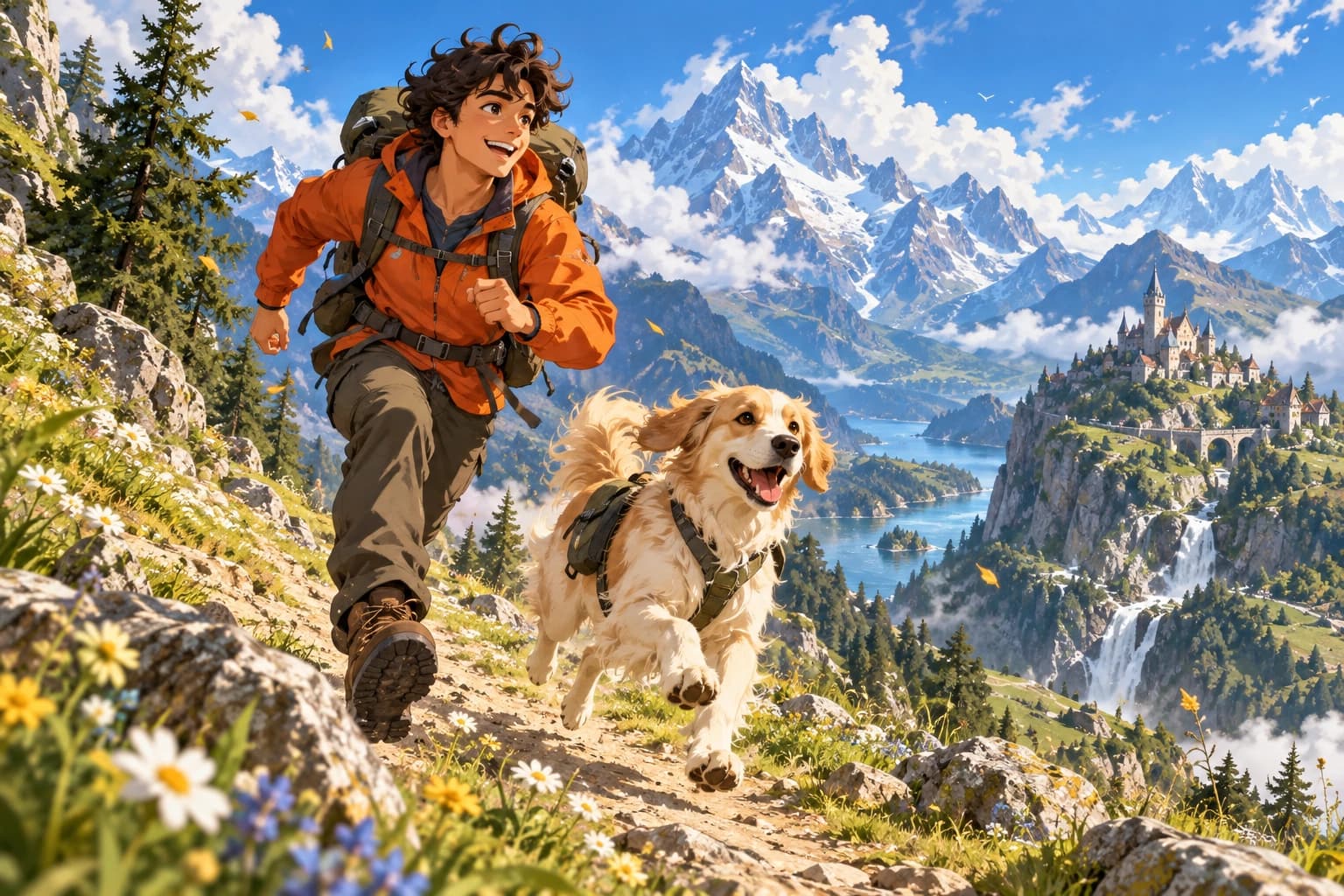
- Anime gives scenes expressive faces and crisp linework. It can suit adventurous or dramatic storytelling.
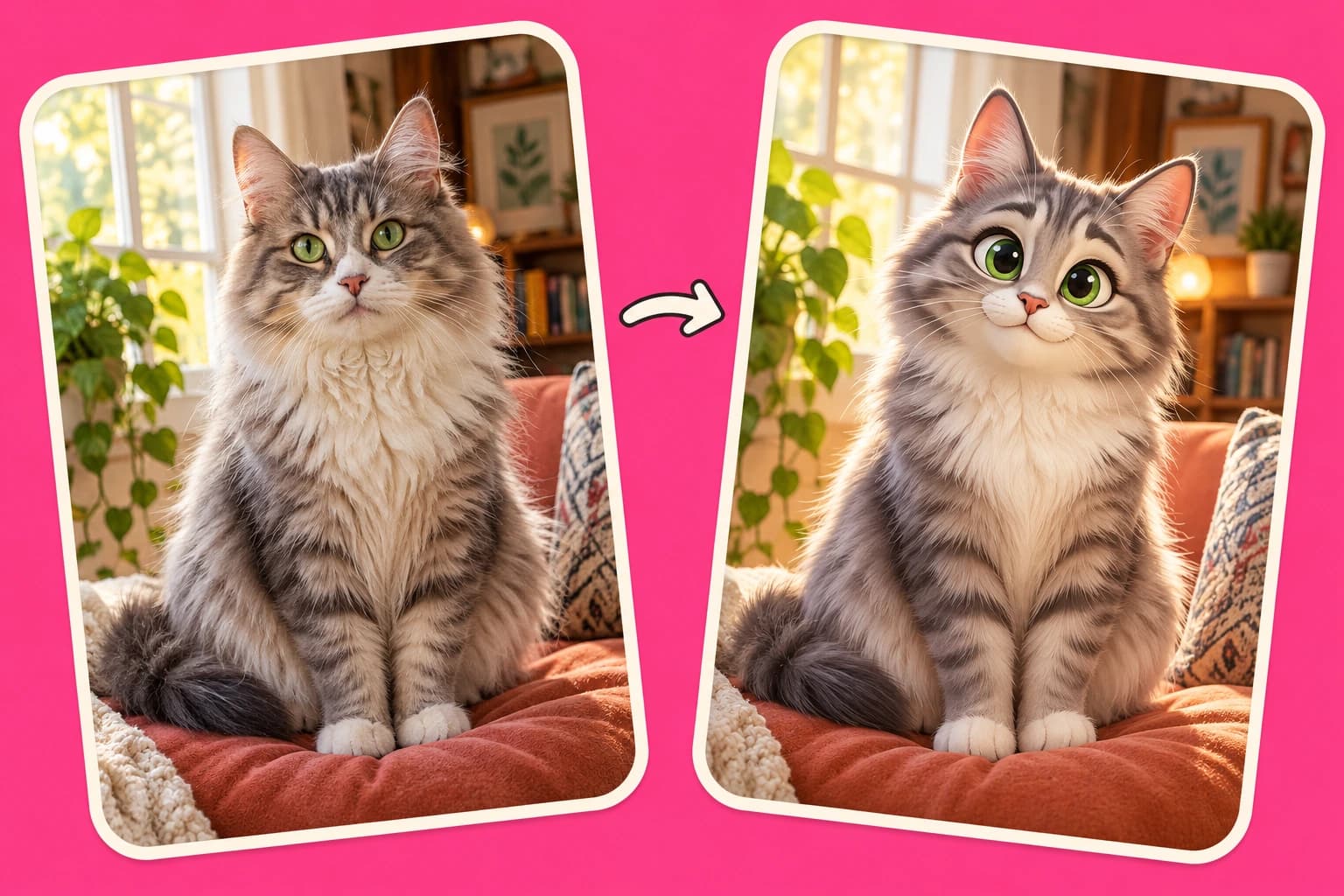
- 3D render creates a stylized animated-film look with dimensional lighting. Consider it for approachable characters and playful explainers.
- Ink sketch uses drawn lines and light watercolor textures. Try it for a quieter, illustrated narrative.
Choose the look before generating
Paste your finished script into Plamia, open the style selection, and choose the treatment you want. Keep the script focused on what happens. Describe important traits, such as an orange jacket or a small white dog, instead of repeatedly adding different art directions to each sentence.
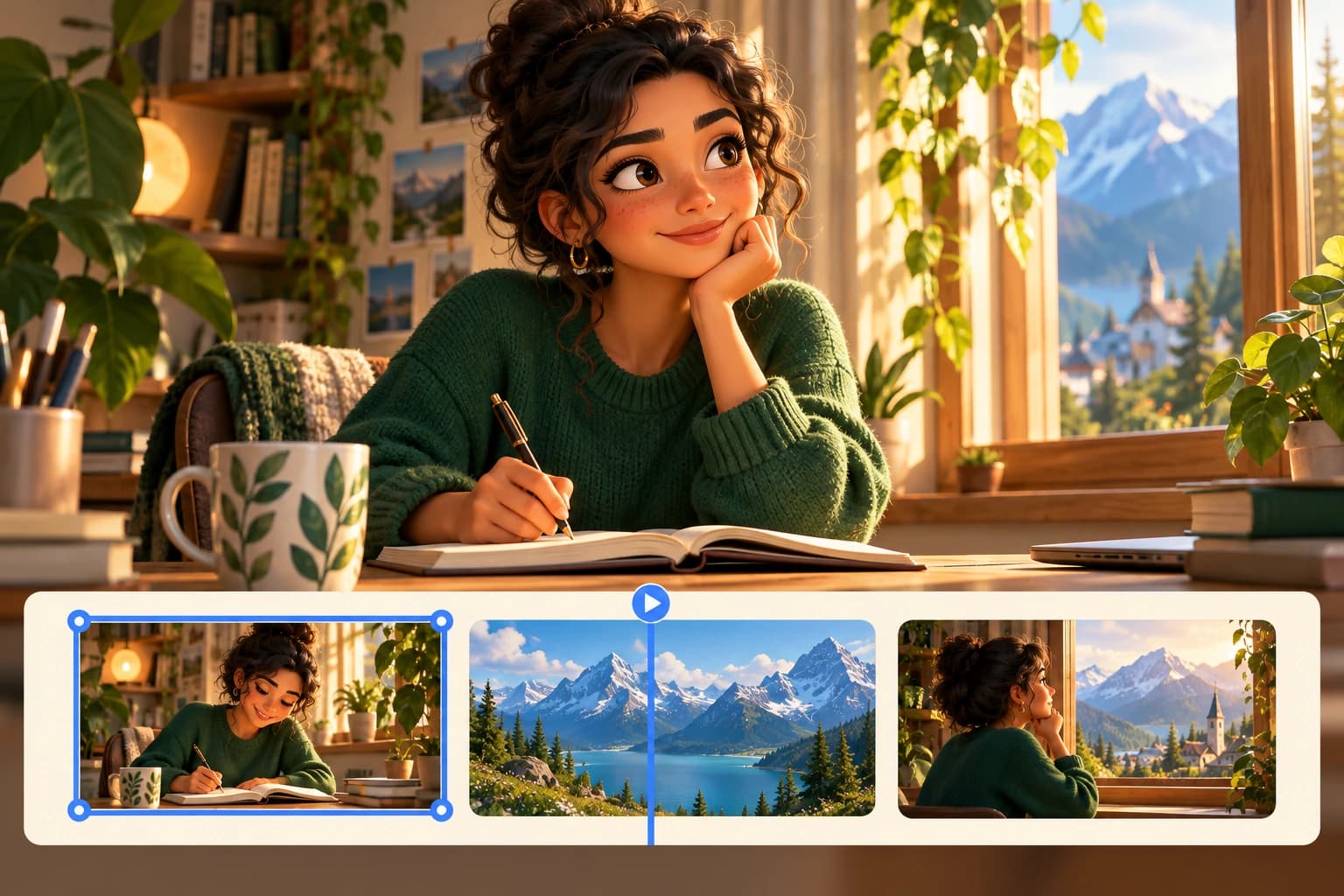
For a first test, use a short complete story rather than your longest script. Review the generated scenes together. One beautiful image is not enough if the next scene introduces an unrelated mood or a character who looks noticeably different.
Check consistency without expecting identical results
Look for changes in clothing, facial features, lighting, and background detail. Generated images can vary, even within one style. Review them as illustrations that need an editorial pass, not as a guarantee of perfect character continuity.
If one image breaks the sequence, revise that image rather than rebuilding an otherwise useful video. Keep captions readable against the busiest scene, and check that important details remain visible in the final aspect ratio. The strongest style is the one that supports the whole story.